Opening and Selecting a Camera
Opening a Camera
There are two ways to open cameras in the Navigator software, both of them depend on the navigation tree to the right of the main window.
- Navigation Tree (
Devives⤑Country⤑Site) - Map (
Maps⤑Country⤑Site)
Via Navigation Tree
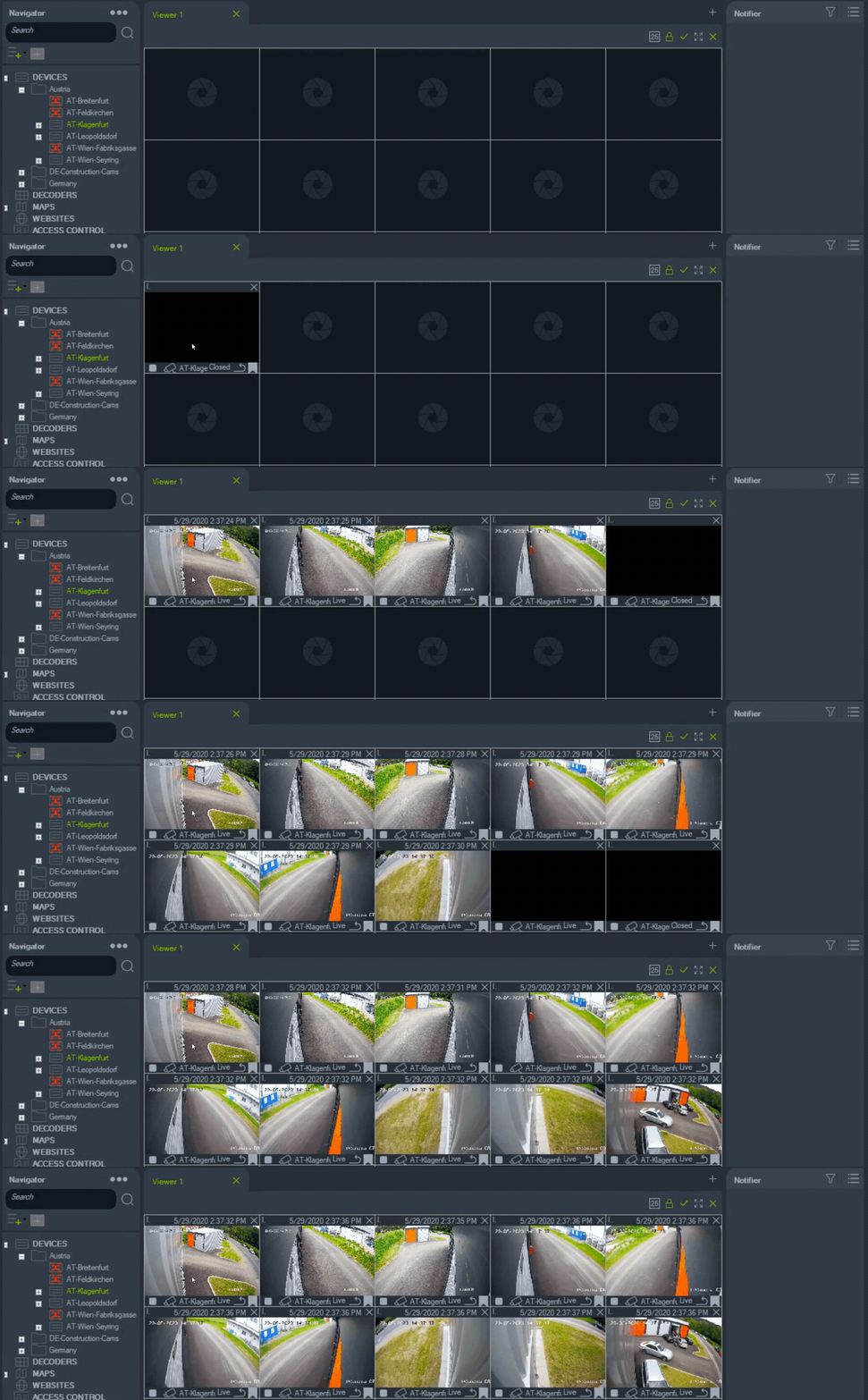
Using the first way you will find a list of all cameras underneath a site. From there you can double click on a camera to open it in the grid (alternatively you can drag it with your mouse and drop it onto an empty cell in the grid).
You can also drag the whole site onto the grid and all cameras of that site will open.
Via Map
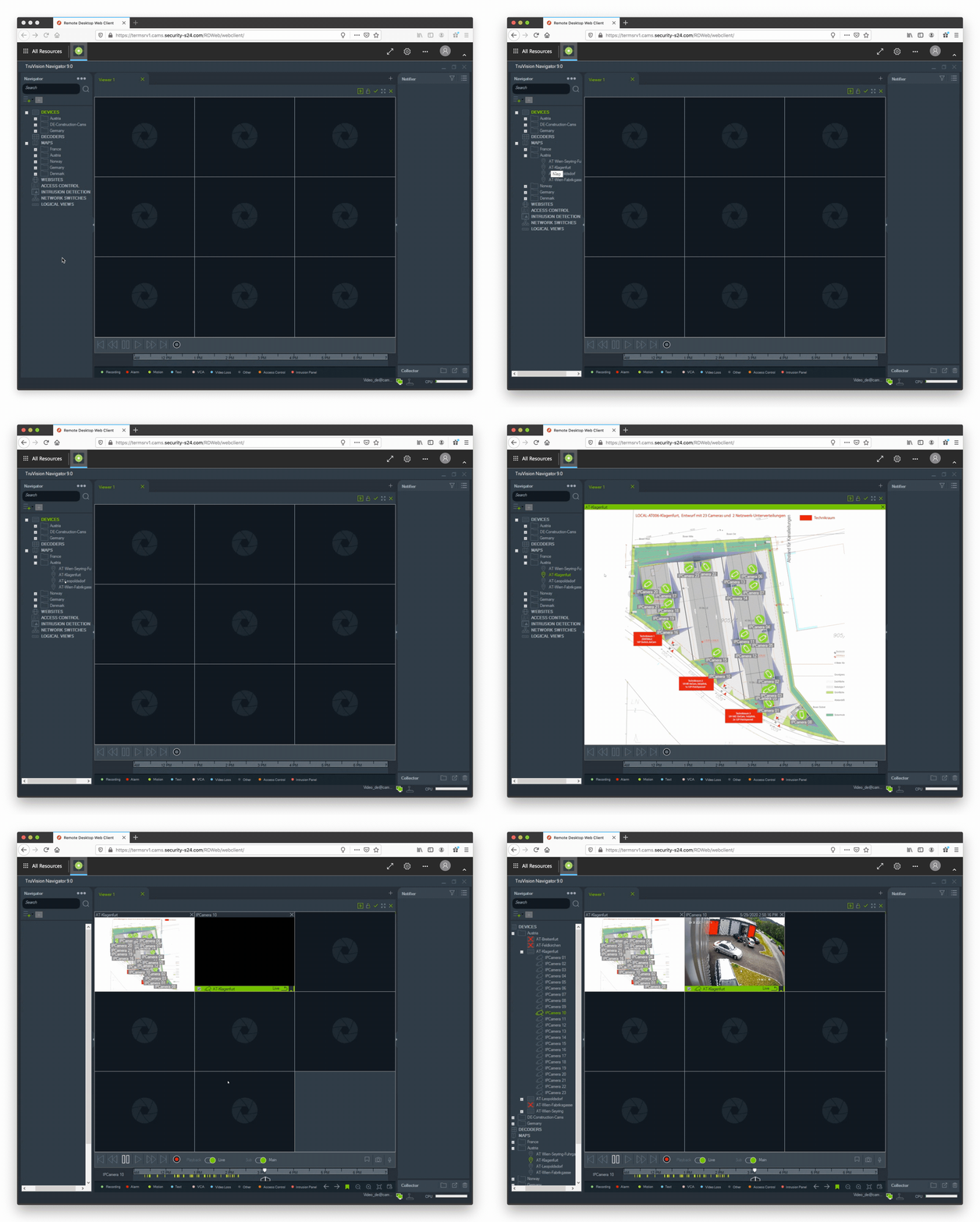
Navigate to a site underneath the Maps element and double-click its name to open an overview map. Than double-click on the map tile to enlarge it. Now you can see a map of a site. In the map there are camera locations and viewing directions. To connect to a camera, just double-click on the camera icon (not the text).
Selecting Cameras
Once a camera has been opened it is possible to select or unselect it. This is important for changing settings later, e.g. switching between a live stream and a recording or choosing a date/time for which you would like to access a recording.
Single Selection
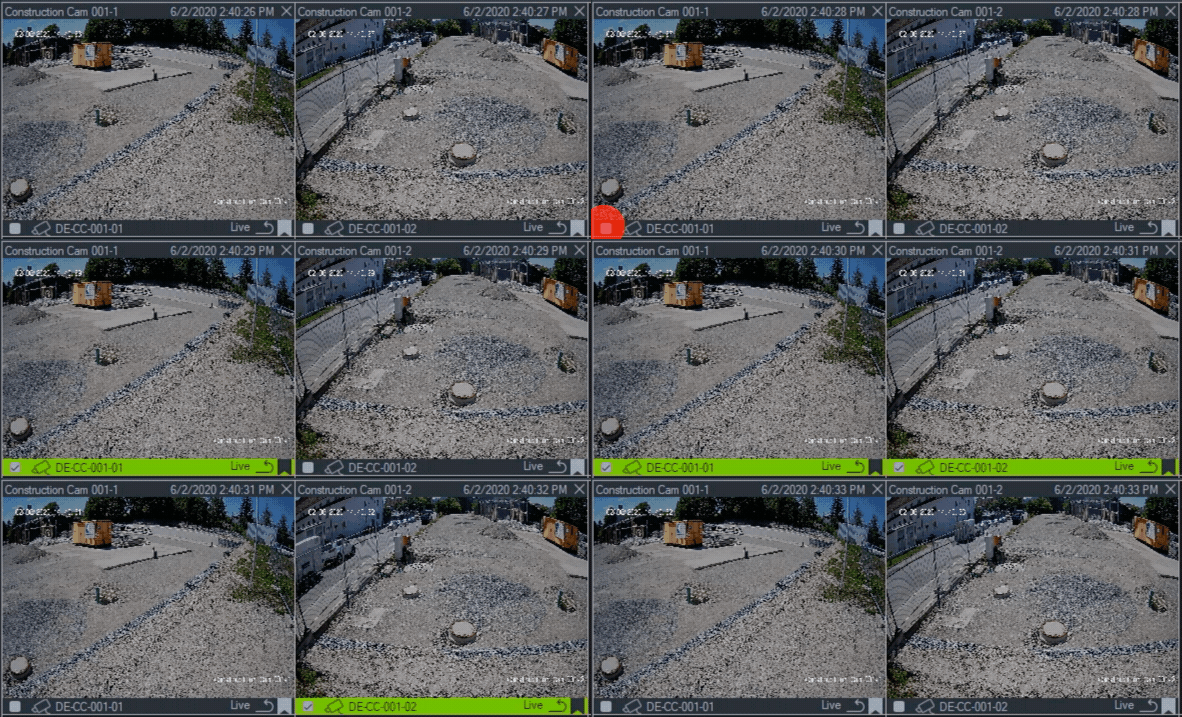
Selecting a single camera just means to click on one of the opened cameras. When a camera is selected text underneath the picture will get a green background.
Multiple Selections
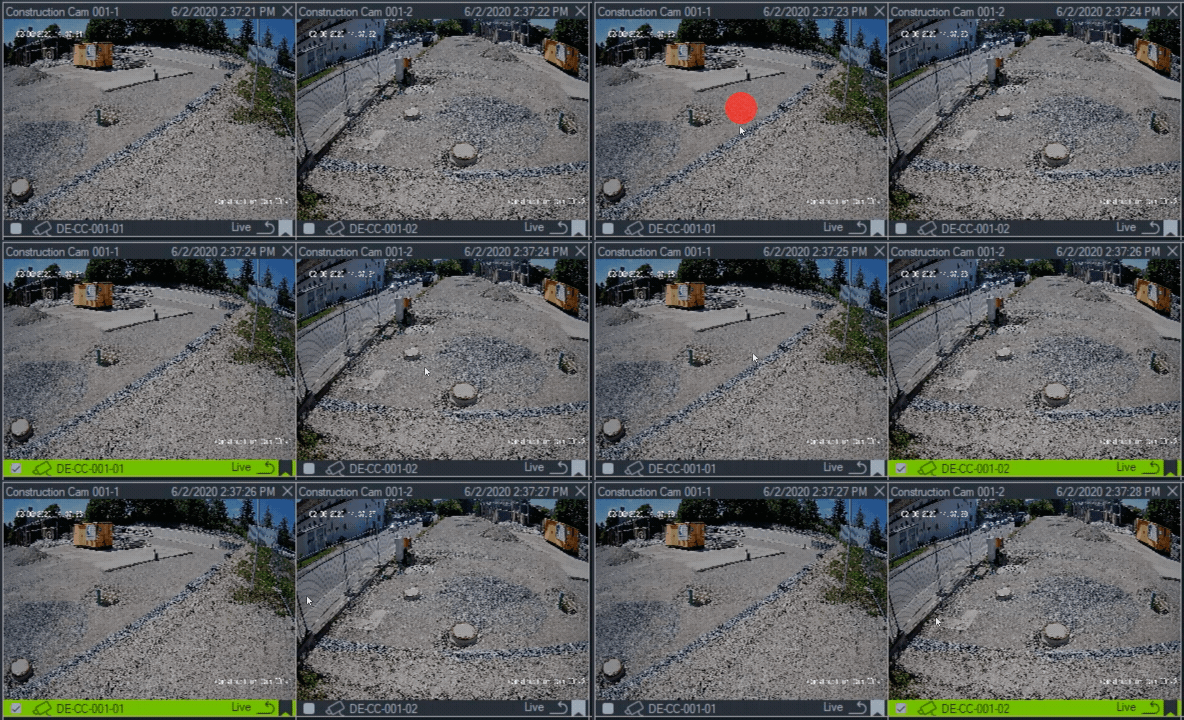
To select multiple cameras use the check boxes to the lower left of each camera image. This makes is possible to apply certain settings to more than one camera at a time.