Exporting Videos
Collect Time Span for Export
After having selected a time frame that you would like to export, right-click on the timeline and select “Export Video”.
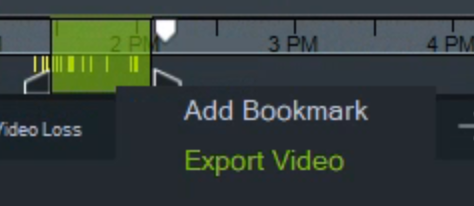
The selected timespan will be added to the collector view and held for export. This way you can collect different time spans and start the export at once for all of them together.
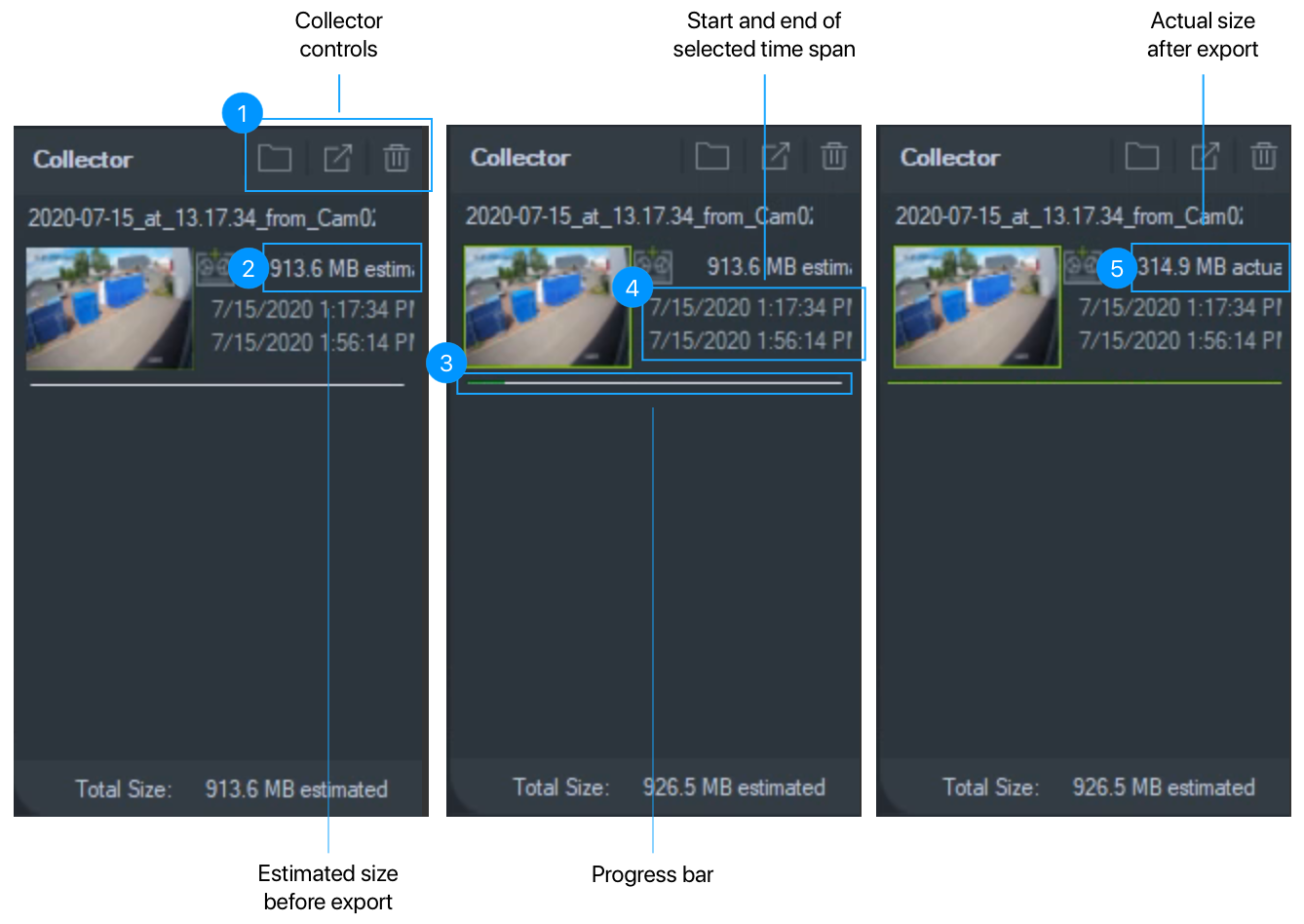
The collector has controls and shows information for each exported video:
- Controls (open the folder that contains the exported files, start the export, delete collected videos)
- Open the folder that contains the exported files
- Start the export of videos
- Delete items from the collector (does not delete exported files)
- Estimated file size (the actual file size can only be determined after the video has been exported)
- Progress bar (Empty/gray when a video has not been exported, full green when an export is done)
- Start and end of the selected time span
- Actual file size (when an export has been finished)
Start the Export
Once you have collected all required time spans click the “Export All” button (second button in the collector controls).
A new dialog will appear where you can configure export options. Usually the default options suffice and you can click “OK” without changing any of the settings.
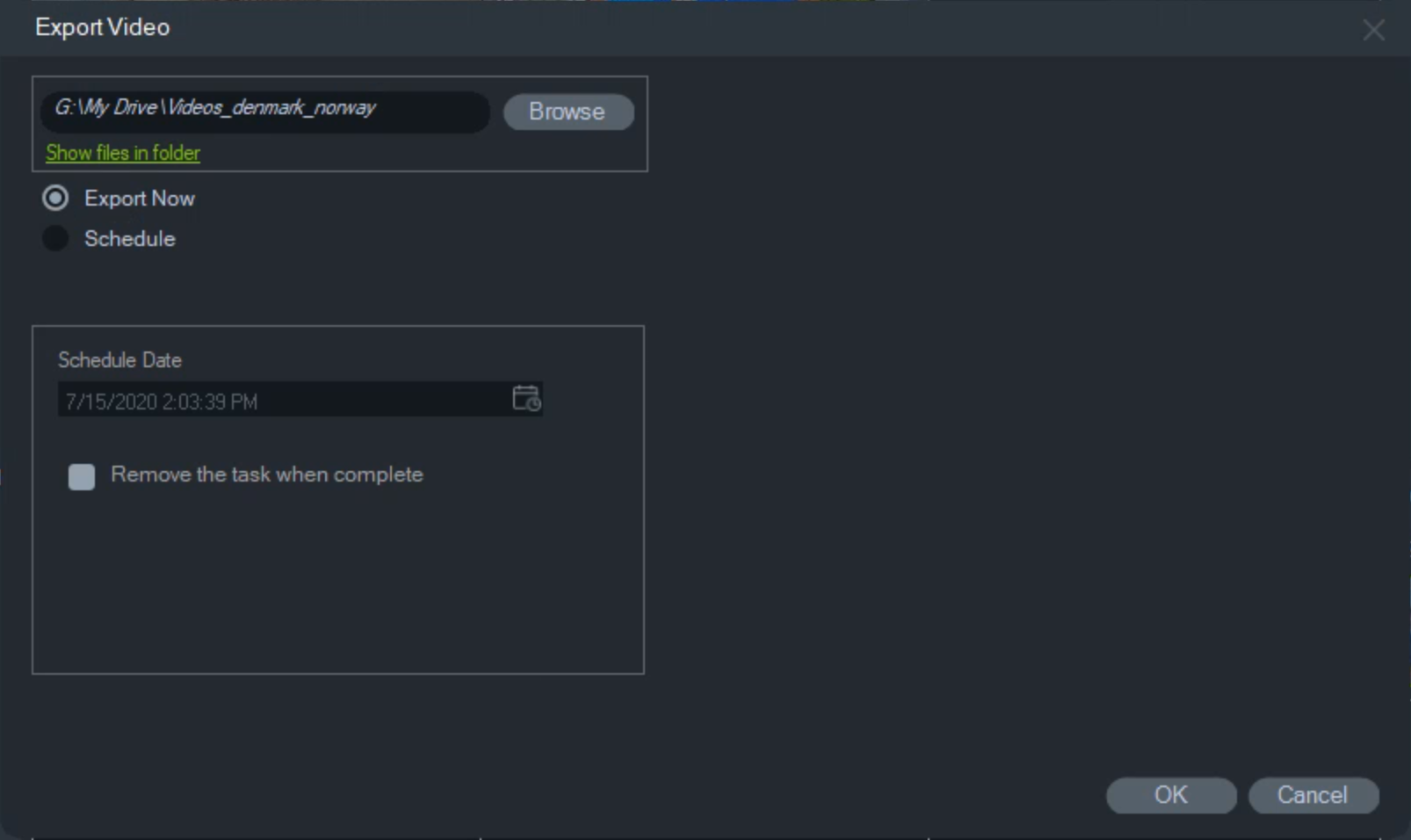
After starting the export the progress bar(s) in the collector will show you the progress for each item.
Accessing Exported Files
Videos are exported to a folder that is synchronized through Google Drive (if you did not change this in the export settings). You can click the “Show files in folder” button (collector controls, first button) to open the Windows Explorer. Here you can see the synchronization status for each file.
Use the application “TruNavPlayer” to access the videos.