Working with Recordings
Usually videos are recorded by means of events. An event can have different sources, e.g. a motion, crossing a virtual line or an larm (door to the technical room is open).
In this section we will describe how to access these recordings to either watch or export them.
All of the following applies to the currently selected camera(s) (checkmark at the bottom left of a camera view). Refer to the chapter about Selecting Cameras for more information.
Playback Controls
Through the playback controls you toggle between watching live pictures or a recording.
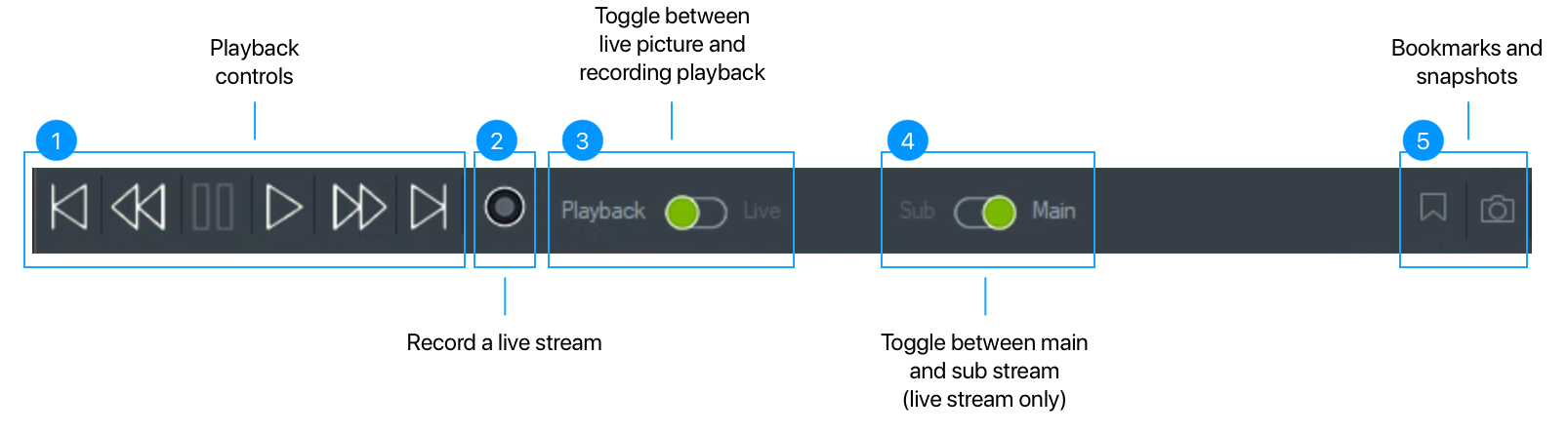
The main elements are:
- Playback controls (pause, play, forward, reverse)
- Manually start/stop to record a live picture
- Toggle between watching recordings (= Playback) or live pictures (= Live)
- Toggle between a high quality (= Main) or low quality (= Sub) stream
- Add bookmark / Save snapshot
When you go to a specific date/time, the toggle (3) will automatically switch to “Playback”.
The sub stream is only available when watching live pictures. This mode is recommended when you open a lot of cameras at the same time, as it reduces the bandwidth and processor requirements a lot.
The Timeline
The basic element for working with recordings is the timeline at the bottom of the window.
Through the timeline you can navigate to recorded events and export recordings to Google Drive.
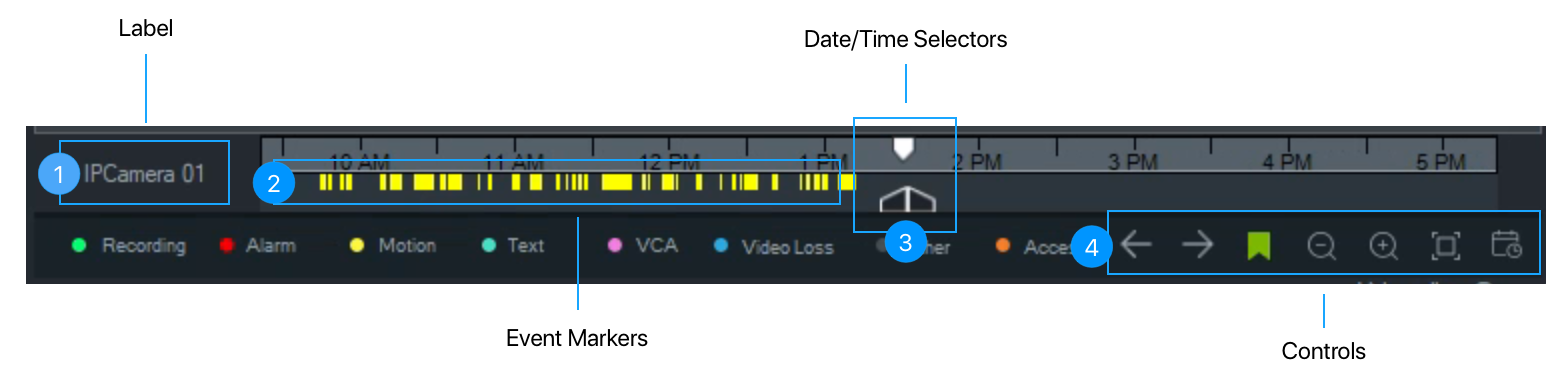
The timeline can be divided into separate parts:
- Label
- Event markers
- ∥∥∥∥ = Alarm events (e.g. door to the technical room is open)
- ∥∥∥∥ = Motion events (e.g. somebody walking, a car driving)
- ∥∥∥∥ = VCA events (advanced video analytics, e.g. somebody walking across a virtual line)
- Date/Time selectors
- Controls
The Label (1) and Event markers (2) are only visible when exactly one cameras has been selected. If none or two or more cameras are selected than the label will be empty and the event markers will be hidden. See the section about Selecting Cameras for more details.
Timeline Controls
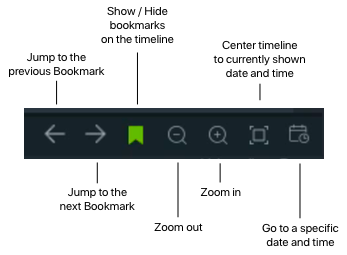
These controls help navigating recorded events. You can use bookmarks, zoom in and out or jump to a specific time.
Bookmarks can be added by right-clicking on the timeline and selecting “Add Bookmark”. Use the controls to navigate to the next or previous bookmark. To delete a bookmark, right-click on one and select “Delete”.
Selecting a Time
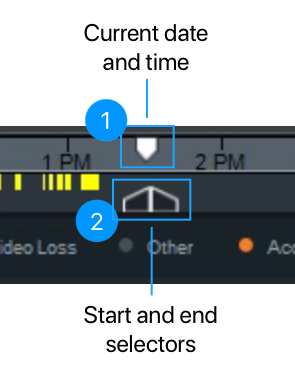
Use the selectors (1) and (2) by moving them around with the mouse. The white selector (1) represents the date and time for which the picture of the selected camera(s) is shown. When you are playing back a recording this selector will move with the playback time. The timeline itself can also be moved around using the mouse.
The black selectors (2) define a time span. This time span can, for example, be exported.
Zoom in to allow a more granular selection of a specific time (see the controls below).
Jump to a specific date and time using the controls.